
Before you begin
- Some Sidekick Pulse recommendations include a theme change that SimGym has already compared with your live theme.
- Tested by Sidekick describes AI shopper behavior. Real customers may respond differently.
- You review an unpublished draft in Canvas and decide whether to publish it.
- Pulse access, desktop testing and Canvas theme requirements limit which stores and changes are eligible.
What are Sidekick and SimGym testing?
Yes, if your store has access. Sidekick can suggest a storefront change, build an unpublished version and have SimGym compare it with your live theme. You can inspect the result before customers see the change.
These suggestions appear in Sidekick Pulse, the recommendation cards on the Home page of Shopify admin. Shopify announced the tested recommendations on October 28, 2026.
SimGym is an app by Shopify that sends AI shoppers through a storefront. They browse collections, open product pages, add items to their carts and describe what they encounter. Sidekick uses that feedback to suggest changes.
The shoppers in these sessions are simulated. Their behavior can help you investigate a design, but it does not establish how your customers will buy.
Follow a recommendation into a draft
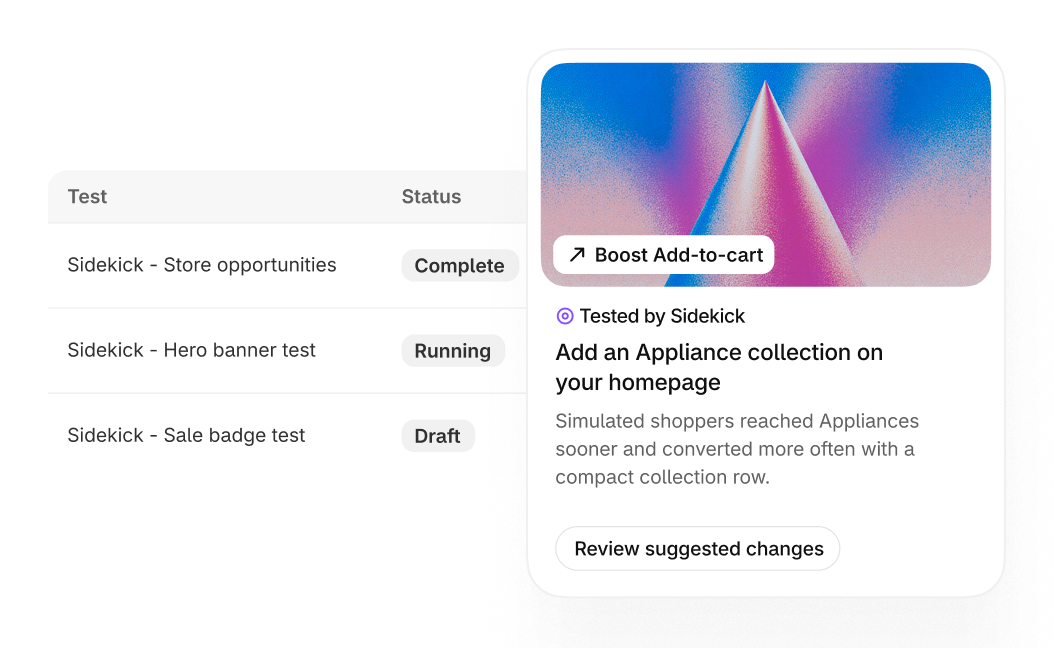
Sidekick can run the comparison before it displays the recommendation. If the changed copy has a higher add-to-cart rate in that simulation, the card displays Tested by Sidekick. Some cards also show an Add-to-cart rate badge.
You may see Review suggested changes without the Tested by Sidekick label. Shopify says this means the test did not find a higher add-to-cart rate for the copy. You can still open it and review the idea.
Open the recommendation
From Home in Shopify admin, choose Review suggested changes on the Pulse card. Sidekick opens a conversation and prepares an unpublished draft from the copy it tested.
Inspect the draft
Choose Review the draft in Canvas to edit it, or Preview the unpublished storefront to see the customer-facing pages. The draft is also added to your theme library.
Decide whether to publish
Review the changes before publishing the draft in Canvas. Opening a recommendation or preview does not change the live theme.
Read the result, then inspect the page
An add-to-cart result tells you what the AI shoppers did in that comparison. It does not measure completed orders, profit or a change in sales from your customers.
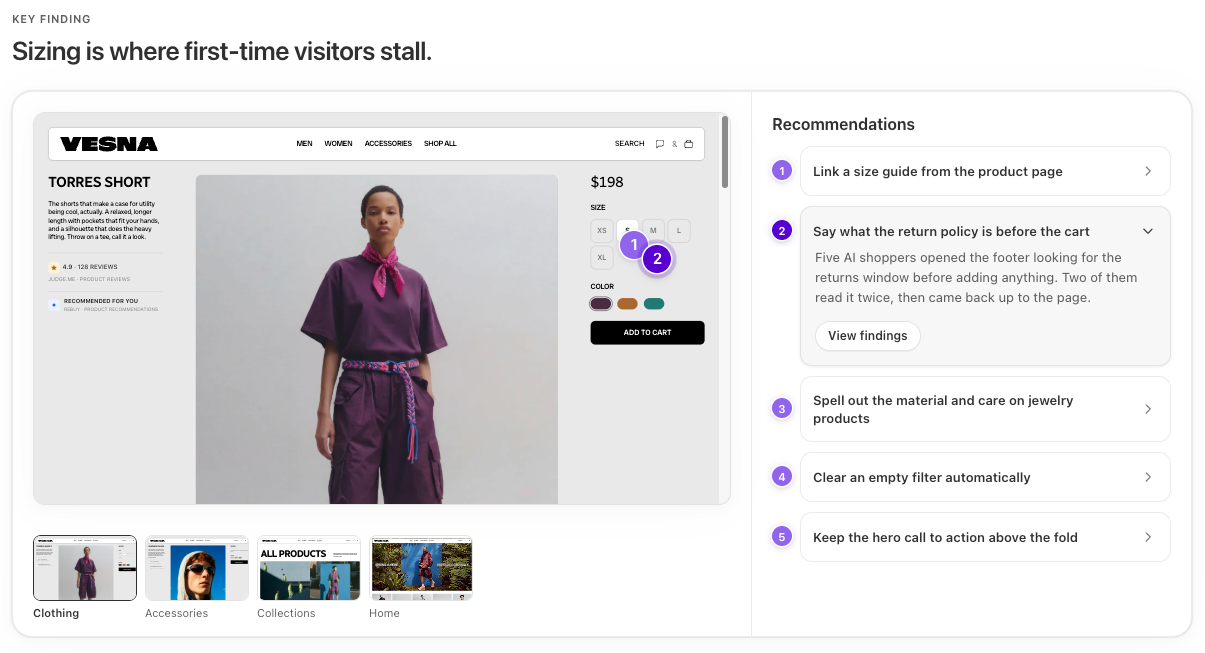
When you review a simulation in SimGym, use View findings to read the feedback behind a recommendation and watch the relevant shopper sessions. Look for a problem you can inspect yourself, such as a size guide that is hard to find.
The result applies to the copy Sidekick tested. If you change that draft afterward, the earlier result does not cover your edits. Check the new version yourself and consider another comparison if the edits change the shopping experience.
Check whether your store can use it
| What to check | Current requirement |
|---|---|
| Pulse access | An eligible store with recent sales activity, Shopify Network Intelligence activated, and owner or staff admin access. |
| Canvas access | Canvas is in early access for certain stores. Your plan must include theme customization. |
| Theme source | Your live theme must work with Canvas. Shopify-developed and custom themes are supported; third-party themes are not. |
| Device and permissions | Canvas opens on desktop. Staff need Online store > Themes > Edit code permission. |
| Editing afterward | The suggested draft opens only in Canvas. Canvas-edited themes do not receive theme updates, and their files cannot be downloaded. |
| App blocks and embeds | You cannot add or configure app blocks or app embeds inside Canvas. Check any app-dependent parts of the draft. |
Having Sidekick in the admin does not mean every store receives these cards. Pulse is available only to some stores with recent sales activity, and the proposed change must meet the testing requirements.
Sidekick tests changes that display on desktop and are intended to help shoppers add products to their carts. You still need to check the mobile experience, checkout and the app features your store depends on.
Can you start a SimGym test yourself?
You can also install SimGym and start a simulation from Apps > SimGym. Choose a focus such as product discovery or add-to-cart confidence to review one theme, or choose Theme comparison to compare two themes. A comparison needs a draft theme.
The standalone app has its own eligibility checks: a Liquid storefront, Shopify Network Intelligence, an active plan and at least one non-gift-card product priced above zero and published to the Online Store. Hydrogen and other headless storefronts are unsupported. Stores with a permanent password page cannot use SimGym; private-mode stores can still run simulations.
SimGym includes a monthly allowance that resets on the first day of the month. After you use it, Shopify lists single-theme simulations at $0.75 USD and theme comparisons at $1.50 USD. The app displays the price before a paid run, and charges only when that additional simulation completes successfully.
Those are the standalone SimGym terms. The Pulse documentation does not explain whether automatically tested recommendations use that allowance or incur those charges. Check the available controls before approving a paid simulation.
How does this compare with Rollouts?
| Your question | A useful starting point |
|---|---|
| Can shoppers find the information on this draft page? | A SimGym review can surface feedback to inspect before publishing. |
| What did Sidekick change, and why? | Open the Pulse recommendation and inspect its tested draft in Canvas. |
| Will actual visitors respond to this price change? | A Rollouts Experiment can compare eligible control and treatment traffic. Experiments require Grow or higher. |
A simulated shopper review and a live experiment answer different questions. SimGym can help you find friction in a draft theme before you publish it. A Rollouts Experiment assigns eligible visitors to a control or treatment and measures what happens on your Online Store.
If you want to know whether customers will accept a higher price, a simulated improvement to a product page does not answer that question. Our Rollouts guide explains how to compare catalog prices with real visitors and what can limit the report.
Start with a change you can inspect
For a first review, I would choose a small layout change with a clear purpose. Moving a size-guide link closer to the size selector gives you something specific to inspect in the draft. Replacing the whole storefront makes that review harder.
Try the page on a phone, select a variant and follow the path to checkout. Check subscription controls, bundle offers or other essential app features if your store uses them. Publish when you are satisfied with that experience, and watch actual store behavior afterward.
Sources and scope of this guide
This guide follows Shopify's October 28, 2026 announcement and official Pulse, SimGym, Canvas and Rollouts documentation checked October 29. We have not run a merchant-store simulation or measured a sales change. The size-guide suggestion is an illustrative first exercise.
The Pulse card is Shopify's illustrated example from Fall 2026 Editions. The SimGym screen is Shopify's published recommendations example. Neither shows a test conducted by Kraviyo.


