
Before you begin
- Sidekick can create and revise an editable Shopify Flow workflow from a description.
- Generation requires a desktop device. The workflow starts inactive until you turn it on.
- Sidekick can generate simulated test events, but a test stops before an action changes store data.
- Plan, staff permissions and app connectors still determine what your automation can do.
What can Sidekick build in Flow?
| Part | What it does |
|---|---|
| Trigger | Starts the workflow when an event happens, such as Order created. |
| Condition | Checks whether the order meets your rule. |
| Action | Does the work, such as adding an order tag when the condition is true. |
Sidekick can turn a description into a Shopify Flow workflow, then revise it as you explain what needs changing. You can open the result in the visual editor and inspect each step. The generated workflow starts inactive.
Flow is Shopify's free automation app. It watches for an event in your store and follows the rules you set. For example, an order arriving can start a workflow that checks the order and adds a tag.
Try a simple order tag
Suppose your packing team wants to find orders with fewer than three line items. You could ask Flow to mark those orders with a small-order tag. This is a suggested exercise; we have not run it in a merchant store.
Give Sidekick the event, the exact condition and the tag you want. Start with one rule you can check yourself.
Create a Flow workflow that starts when an order is created.
If it has fewer than 3 line items, add the order tag small-order.
Leave the workflow inactive so I can review it.No store is connected. This example shows the expected route through one simple rule.
Example order: 2 line items
small-orderExpected path: 2 line items follows True and reaches Add order tags with small-order.
A Shopify Flow test stops before a write action. Reaching the tag step in a test does not add a tag.
Open the draft before doing anything else
Install Shopify Flow if you have not already, then open Apps > Flow on a desktop device. Open Sidekick there and describe the automation. Follow the button in its response to open the generated workflow.
The draft remains editable. Ask for a revision or change a step yourself. When Sidekick proposes changes, use Apply changes or Discard changes after reviewing them.
Check what the condition actually counts
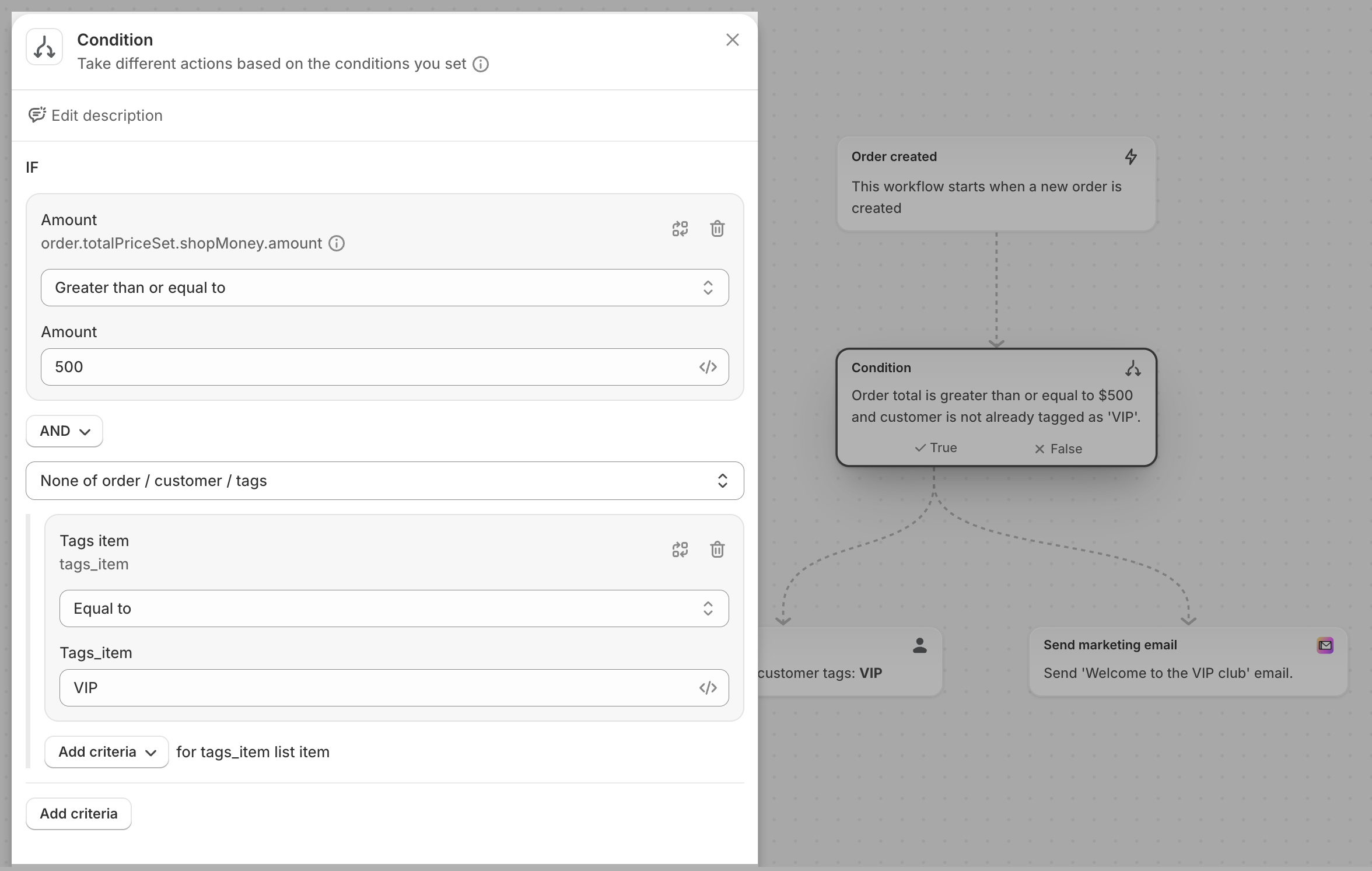
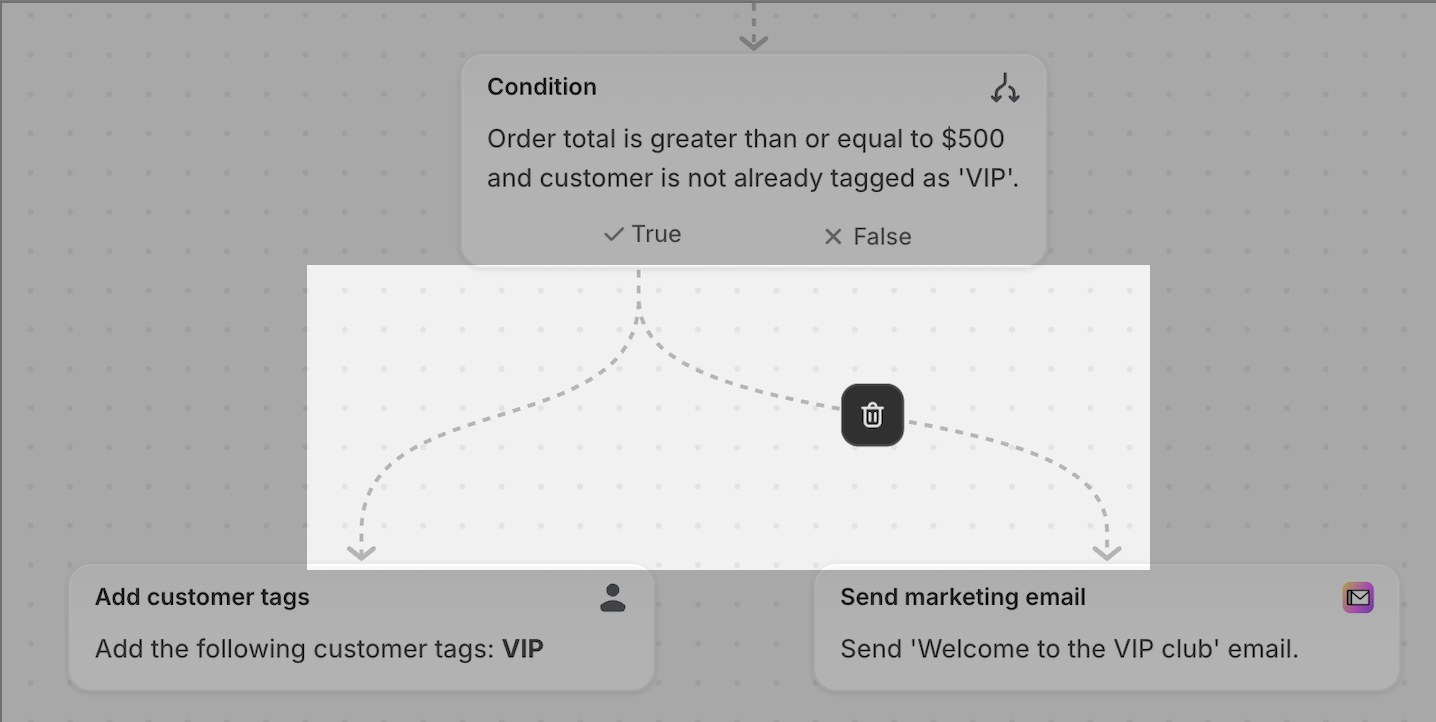
For the tagging example, check that the trigger is Order created, the condition means fewer than three line items, and the action adds an order tag. A customer tag would label the person instead of the order.
Read the field and comparison operator, even when the step description sounds right. A count of line items and the number of units bought are different things. Check the exact tag spelling and follow the True and False connections to see where each case goes.
Shopify warns that Sidekick can omit business-specific logic in complex workflows. If the draft has more branches than you can comfortably follow, reduce the task and build up from a smaller version.
Test both sides of the rule
Open the workflow, click Edit, and select Test your workflow on the trigger. Generate events asks Sidekick for two simulated test events using existing store data. You can edit those events or add your own.
For this exercise, try an order with two line items and one with exactly three. The first should reach the tagging action; the second should take the False path. Inspect the test data rather than assuming the generated cases cover the boundary you care about.
A Flow test does not send notifications or change live store data. It stops at the first action that would make a change, so reaching Add order tags in a test does not actually add the tag. Review the selected path and the action's configuration preview.
Actions that contact external services cannot be fully simulated. A test can show their configuration without proving that an email arrives or a request succeeds.
Check your plan, permissions and connected apps
| What you need | Current requirement |
|---|---|
| Workflow generation | Use Sidekick in Flow on a desktop device. |
| Send HTTP request | Grow, Advanced or Plus. This action is unavailable on Basic. |
| Custom partner-app tasks | Shopify Plus. |
| Staff access | Access to Flow and all store data, actions and apps used by the workflow. Where Flow automations permissions are available, using secrets also requires Manage connections and secrets. |
| Usage | Flow usage follows the API limits of your plan. |
Flow is free on Basic, Grow, Advanced and Plus. Some actions have their own plan requirements, and third-party services may charge separately.
An app needs a Flow connector for its supported triggers and actions to appear. Install and configure the app or connection first. Asking Sidekick to use a service does not give that service a connector.
Shopify is rolling out a separate Flow automations permissions category. Stores that do not have it yet still use the existing Flow app permission.
Turn it on when you are ready
After reviewing the draft and its test cases, use Turn on workflow to activate it. It can then take actions when its trigger occurs. Check the Recent runs list afterward to see what happened during actual runs; simulated tests do not appear there.
I would start with a tag like this before asking for an automation that cancels orders or sends customer messages. A small rule gives you something you can inspect without making the first attempt depend on several apps.
Sources and scope of this guide
This guide follows Shopify's workflow creation, editor, testing and permission documentation checked October 28, 2026. The prompt and order-tagging cases are illustrative. The screenshots are Shopify's published editor examples; they do not show a workflow generated or tested by Kraviyo.
The interactive rule diagram shows the expected path for our example; it is not connected to Shopify. The embedded Shopify Academy video is an April 2025 template tutorial, separate from the Sidekick instructions.


