
Before you begin
- Translate & Adapt is Shopify's free app for translating and adapting store content.
- The October 27 update brings weekly Auto-sync and eight automatic translation languages to US and Canadian stores.
- Auto-sync is off by default and runs weekly, so urgent changes may need Translate now.
- Manual translations stay untouched, and automatic language slots cannot be reassigned.
What is Translate & Adapt?
Translate & Adapt is a free app made by Shopify. It helps you translate store content such as product descriptions, collections and pages. You can use Shopify's AI translations, write your own, or review both languages in its side-by-side editor.
The Adapt part also lets you change content for different markets that use the same language, such as using different wording for customers in the UK and the US.
You manage the app in Shopify admin under Apps > Translate & Adapt. Your store's languages are managed separately in Settings > Languages.
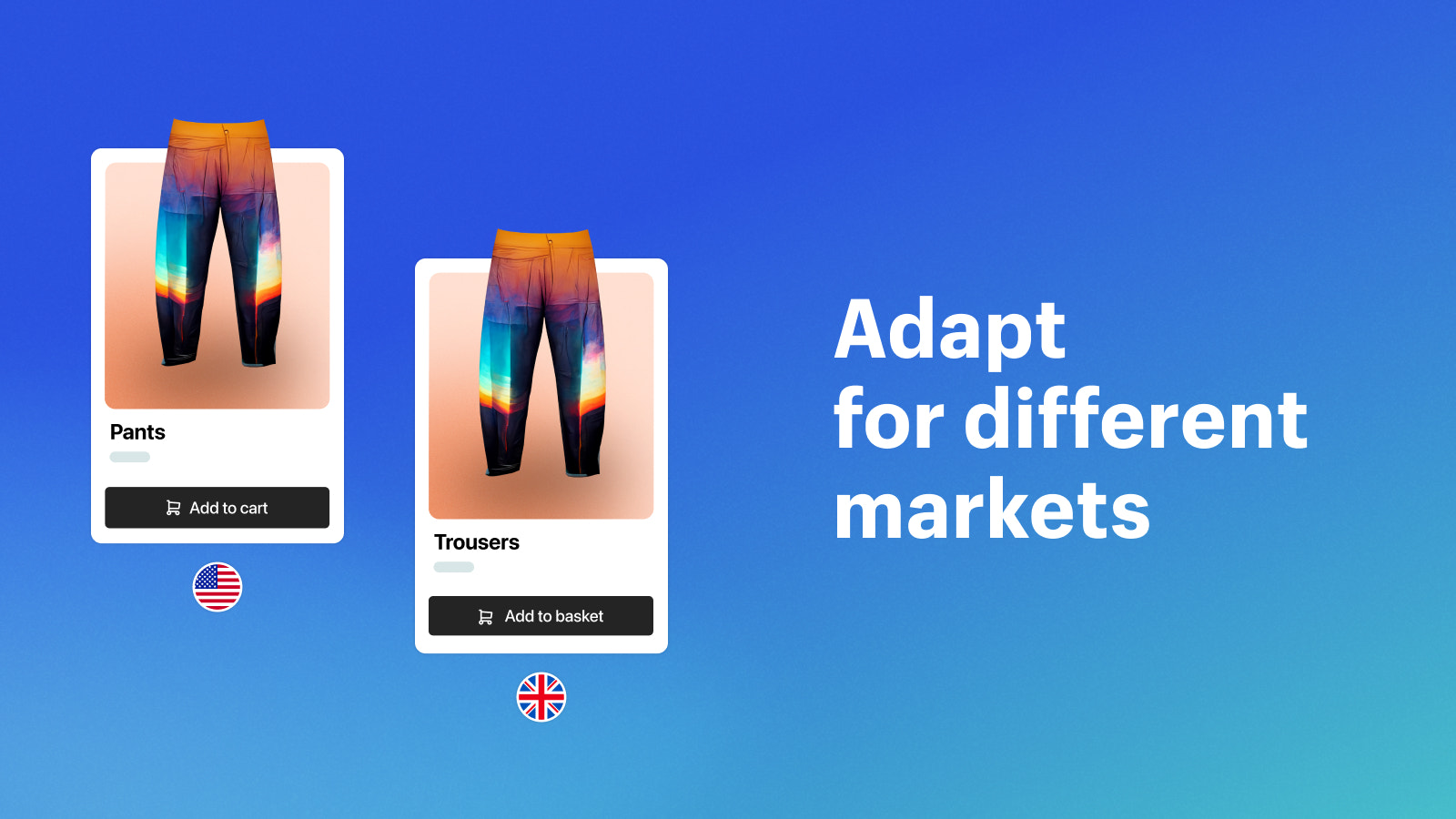
What changed for US and Canadian stores?
On October 27, 2026, Shopify announced Auto-sync for merchants in the United States and Canada. Eligible stores can now have new and changed content translated each week, with automatic translations for up to eight languages in addition to the default store language.
You turn Auto-sync on separately for each published language. It starts off disabled. The Translate now button lets you request an update sooner, without waiting for the weekly run.
Check the controls in your app before planning around the update. Shopify says a store showing Translate now has the eight-language allowance and Auto-sync, even if its country isn't listed in the Help Center's availability table. Other stores may still have Auto-translate, a two-language allowance and no Auto-sync.
Why does the Help page list different countries?
When checked on October 27, the Help Center table still listed the earlier European rollout. The new announcement explicitly includes the US and Canada. The Help Center also identifies the Translate now button as a way to confirm access outside its listed countries.
Auto-sync can take up to a week
| Control | What it does |
|---|---|
| Auto-sync | Runs on the same day and time each week for the language you enable. |
| Translate now | Requests a translation or update without waiting for the scheduled weekly run. |
| Manual editing | Lets you choose the wording yourself. Automatic updates preserve that wording. |
Turning on Auto-sync doesn't translate your content immediately. The first run can be up to a week away. An unpublished language waits until a scheduled run after you publish it.
For a product launch or a correction that needs to appear sooner, use Translate now and review the result. A large store's translation can take hours, so allow time before your launch.
Choose your languages before using the slots
Using Translate now or Auto-sync for a language uses one automatic translation slot. Using both for that same language still uses one slot.
You can't move a used slot to a different language, and removing a language doesn't reset the allowance. Choose the languages you intend to keep before using automatic translation.
If you need more than your automatic allowance, Shopify points to manual translations or a third-party translation app.
What still needs your attention?
| Content | What to check |
|---|---|
| Manually edited translations | Revisit them when you change the original wording or product facts. |
| Legal policies | Shopify excludes policies from automatic translation. Add and review those translations manually. |
| Some theme text | For some theme content, automatic translation only fills missing translations. It does not update existing ones. |
| Text inside product images | The app does not translate product images. Prepare a localized image when needed. |
| Forms and app content | Shopify Forms, collection filters and unsupported third-party app text are outside the app's translation coverage. Check these on the storefront. |
| URL handles | Automatic translation does not translate URL handles. Add translated handles manually if you want them. |
Automatic updates preserve translations you entered or edited yourself. Keep a way to review those translations when the original content changes.
For example, imagine you refine a French product description by hand, then later change the care instructions in English. The protected French wording will need another review.
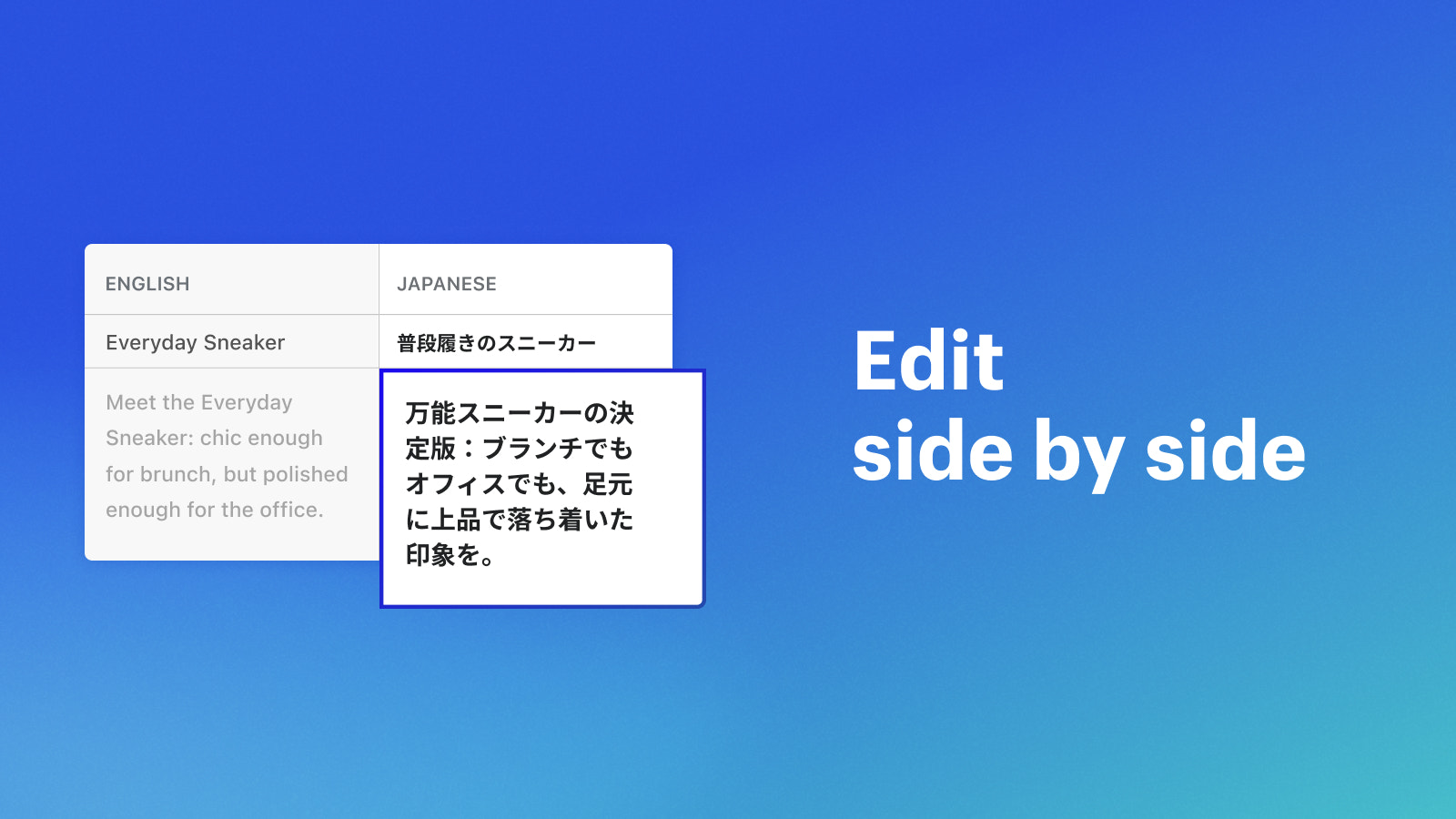
Set up one language first
I'd start with one language your customers need and check the storefront before expanding. Add the language in Settings > Languages and make it available to the intended market or domain.
Confirm the available controls
Open Translate & Adapt and select the language. Look for Translate now and the Auto-sync translations toggle.
Create and review the first translation
Use Translate now. For a language you have not published yet, review the wording before publishing it to customers.
Publish when it is ready
Go to Settings > Languages and publish the language after checking its content and market assignment.
Enable the weekly updates
Return to the language in Translate & Adapt and turn on Auto-sync translations. Use Translate now again when a change cannot wait for the weekly run.
Check the page your customer will use
Open a translated product page and read it as a customer choosing a variant and checking how to use the product. Then try the language selector and the route into the cart. If a form or app widget stays in the original language, investigate that part separately.
I'd keep a short list of manually reviewed pages and revisit it after product or policy changes.
Sources and scope
This article follows Shopify's October 27, 2026 US and Canada announcement and the official app listing and Help Center documentation checked the same day. The images are Shopify's illustrated App Store examples of editing and market adaptation. They don't show the new Auto-sync interface. We haven't installed the update, assessed translation quality or measured time savings. Availability and controls can change during the rollout.