
Before you begin
- Compatible homepage sections can become Shop content, with a layout adapted for Shop.
- Access is limited to selected Online Store 2.0 stores.
- Review the preview before re-enabling sync: it replaces manual Shop edits.
One homepage, two places to browse
Shopify announced homepage syncing on October 28. For stores with access, supported content from the published online-store homepage can also appear in Shop.
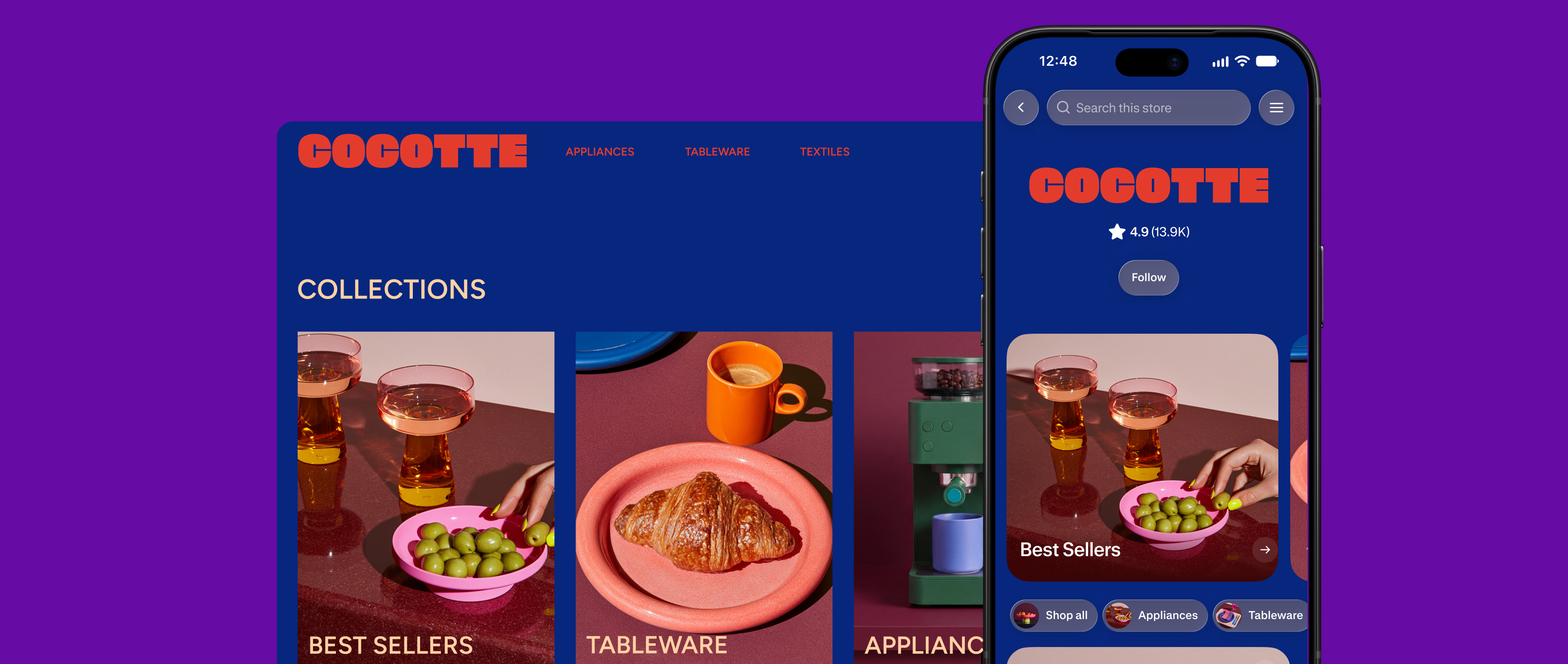
Your Shop store is the branded storefront customers visit in the Shop app or on shop.com. It has its own shopping layout, separate from the website at your store's domain.
Imagine a tableware shop preparing a winter collection. The team has already chosen a campaign image and arranged its featured products on the website. Syncing can carry compatible merchandising into Shop, where the team can review how it looks before making further decisions.
What can carry over
| Homepage content | Examples |
|---|---|
| Media | Images, videos, slideshows and carousels. |
| Products and collections | Product rows or grids, collection rows or grids, and shop-the-look images with product hotspots. |
| Brand storytelling | Story tiles, value propositions, press quotes, logos and embedded social posts. |
| Shopping shortcuts | Quick links to categories, collections or shopping paths. |
Shopify matches compatible homepage content to Shop sections. A section can be left out if Shopify can't identify it or Shop has no compatible section for it.
The rest of your website stays separate
Product-page blocks, About and FAQ pages, deeper pages and standalone navigation don't copy through this feature. Your online-store theme and SEO stay unchanged.
A supported homepage quick link is different from bringing over your entire website menu. I'd check where each link leads in the Shop preview, especially if the campaign depends on a particular collection.
For our illustrative tableware shop, the winter collection row is worth checking. Its separate care-guide page needs its own review; the team shouldn't assume that every piece of the website has followed the collection into Shop.
Who can appear on Shop and who can sync
Since November 10, eligible stores can appear on Shop with other payment providers. Shoppers at those stores complete their purchases on the online store. Direct checkout in Shop and Shop Campaigns still require Shopify Payments.
Shopify is gradually opening access to a small, manually selected group using Online Store 2.0 themes. Having a compatible theme does not guarantee access. Vintage themes and headless storefronts are currently excluded.
For selected non-Plus stores without previous Shop merchandising, syncing turns on automatically. Stores on Plus, or with existing Shop merchandising, receive 30 days of notice first.
Open the Shop channel in Shopify admin to check whether your store can appear on Shop. Check the store editor in that channel for the sync option.
Review the Shop preview
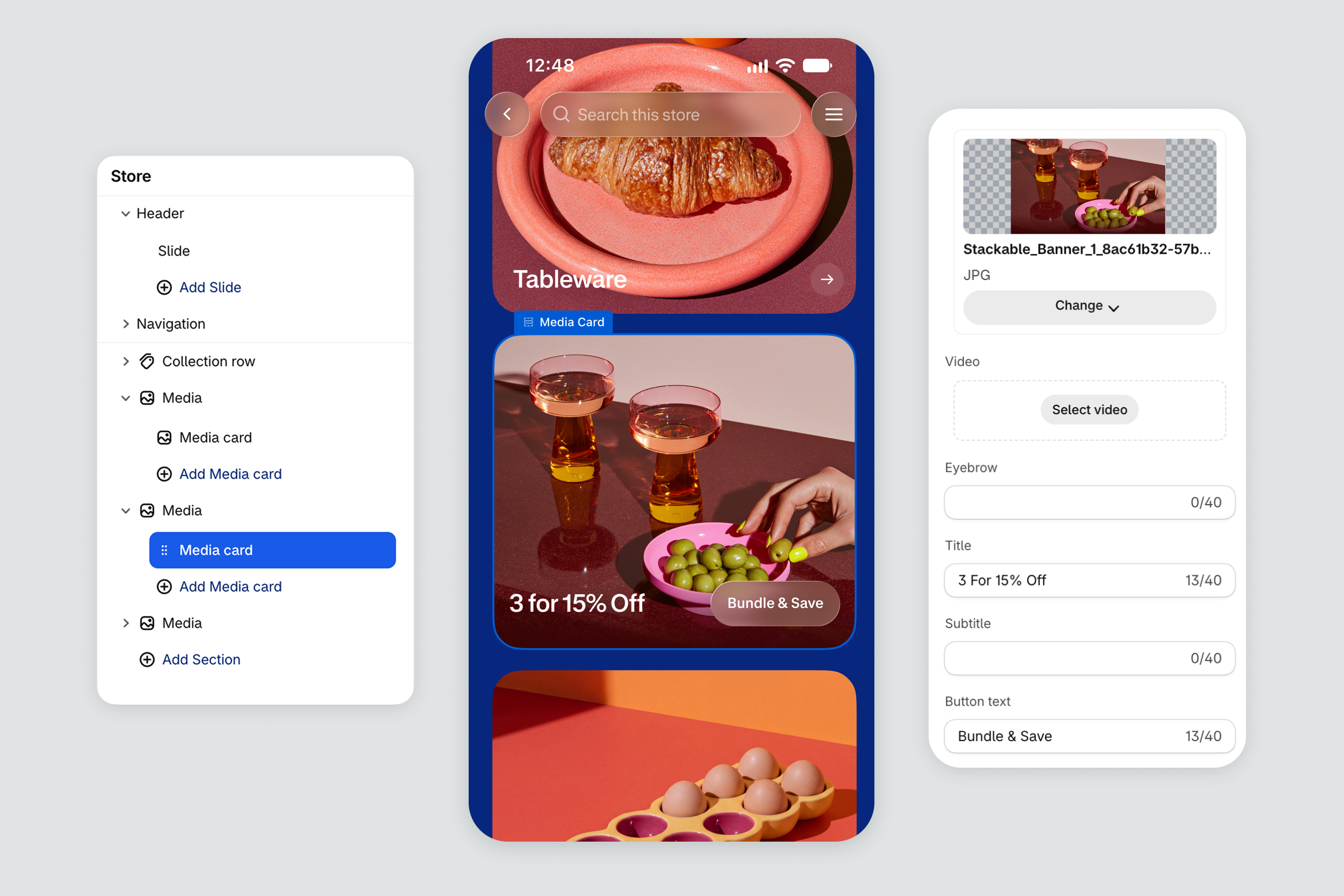
When syncing is available, open Sales channels > Shop > View store, then select Store from the drop-down. Review the preview before choosing Sync now.
I'd review it as a shopper planning one specific purchase. Can you find the collection? Is the product image clear? Does the link open the item you intended? A page can look tidy and still lead someone to last season's collection.
Pay particular attention to wide campaign images. Shopify recommends vertical or mobile-optimized images when synced media looks cropped or blurry. Its separate Shop header guidance specifies 1080 × 1170 pixels for background media.
Manual edits pause the connection
To edit synced content in Shop, choose Edit, then Continue to edit. This turns syncing off. Shop keeps that version until you edit it again or re-enable syncing; later homepage changes stop carrying over.
Turning syncing back on replaces manual content edits with the latest supported homepage content. Check the preview before choosing Sync now again.
If a teammate has prepared a Shop-only promotion, I'd save a record of it before resyncing. Agree which version you want customers to see before someone updates the homepage or returns to automatic syncing.
A small check for your next campaign
For the tableware example, I'd keep a short review note with the intended collection, image and destination. Compare that note with the Shop preview, then check it again when the next campaign changes. Anyone taking over the campaign can see what was intended.
If an essential section is missing, decide whether the remaining synced content is useful enough or whether the team should maintain Shop manually. That choice depends on how much of this particular campaign survives the adaptation and who will keep it current.
Sources and scope
We checked Shopify's October 28 announcement, November 10 eligibility update and Help Center guidance on November 12, 2026. The tableware campaign is illustrative. The two images are Shopify's official examples. We have not activated syncing, observed a merchant rollout or measured sales results for this guide.


