
Before you begin
- Matching flat rates inside one shipping option can become a single highest charge.
- Separate options, shipment-based calculations and preorders have different rules.
- Access is gradual. Check your shipping apps and the switchback window before upgrading.
What is Shopify changing?
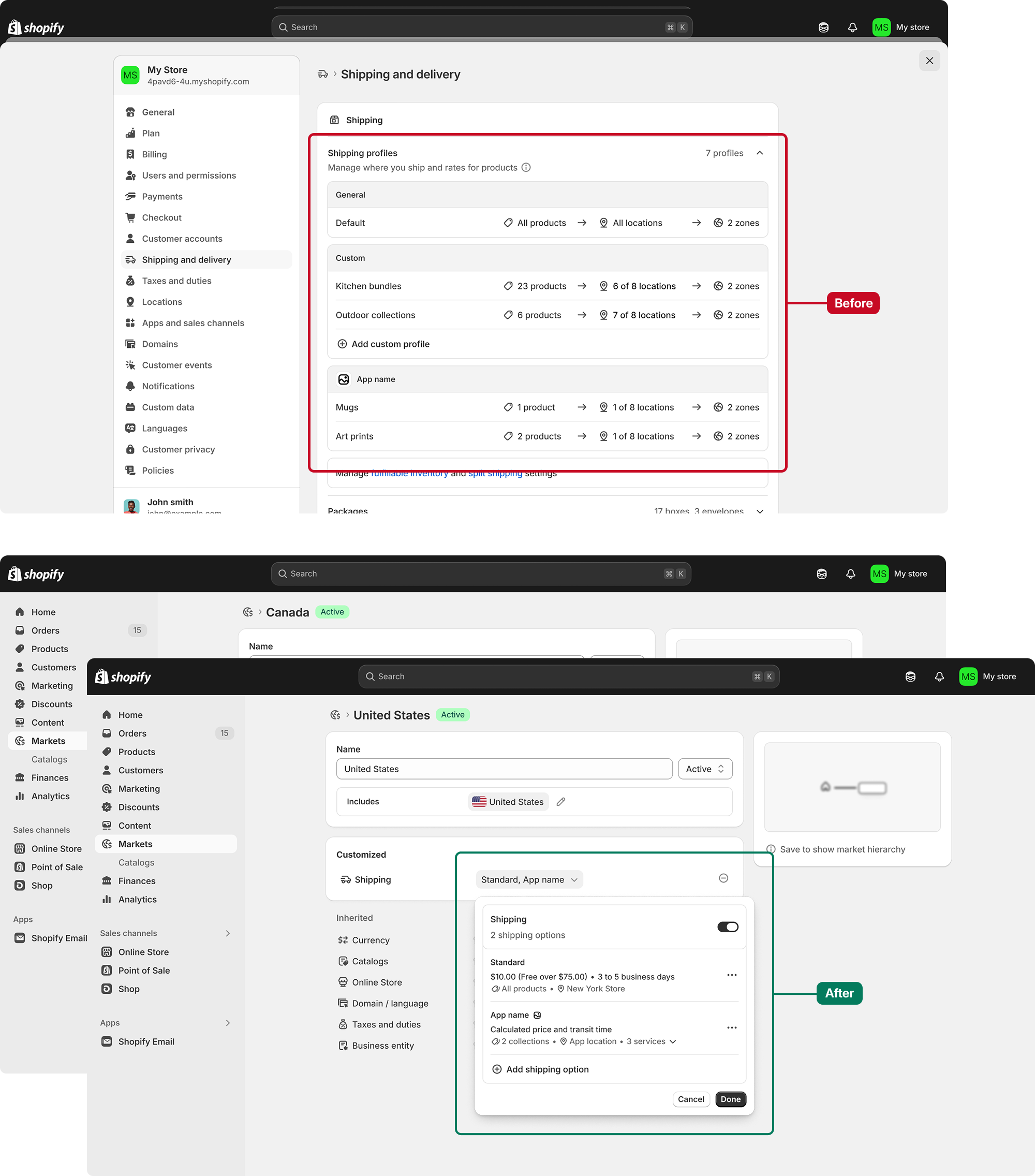
Yes, the amount a customer pays can change. Shopify is moving shipping setup from product-based shipping profiles into Markets, where you manage the regions you sell to.
In the new setup, you give a market a delivery choice such as Standard, then add rates that depend on the products or fulfillment locations involved. How you group those rates affects the charge at checkout.
Shipping options by market is still in early access for selected stores. Shopify announced the feature preview on July 1, 2026, and its current developer schedule lists an October 2026 start for merchant rollout. The schedule can change. Your existing profiles and rates keep working until your store is upgraded.
When $5 and $8 become an $8 charge
| Cart | Shipping charge |
|---|---|
| Product A | $5: only its rate applies. |
| Product B | $8: only its rate applies. |
| Products A and B | $8: both rates match, and the higher one covers this option. |
Shopify uses this example in its developer documentation. One product ships from a warehouse with a $5 Standard rate; the other ships from a warehouse with an $8 Standard rate.
Under shipping profiles, charges from different profiles or location groups are added, so that cart could cost $13 to ship. In the new setup above, both flat rates sit inside the same Standard option and the customer pays $8.
I'd still check what the parcels cost to send before deciding that $8 is enough to charge, especially if the products leave different warehouses.
When do rates still add up?
| Situation | What the customer pays |
|---|---|
| Separate options | Charges from different required shipping options are added. Standard for one collection and Express for another do not share a highest-rate calculation. |
| Per-shipment rates | Weight-based, carrier-calculated and app-calculated rates are worked out for each shipment, then added together. |
| Preorders | The preorder charge is added to the charge for ready-to-ship items, even when both use the same shipping option. |
| Free shipping | An applicable free-shipping threshold makes that shipping option free. |
The calculation depends on the type of rate and the shipping option it belongs to. These are the exceptions I'd check before assuming a mixed cart will cost less.
Upgraded stores also have split shipping enabled. A customer can see separate deliveries even when one flat-rate charge covers them. Other shipments covered by that charge can be labeled Included at checkout.
Will your shipping apps still work?
Check each app before opting in. Shopify says some shipping apps still need changes, and stores relying on incompatible apps can be upgraded later. A warning banner in Settings > Shipping and delivery can identify an incompatible app.
The difference is which settings the app controls. An app that only manages its own delivery profiles can keep doing that. Apps that read or change your store's shipping profiles need to support the move into Markets.
Ask the provider whether its integration supports shipping options by market. Then check the rate calculation and the order's route into fulfillment. Seeing a price at checkout is only one part of that check.
Check your setup before upgrading
These are checks to run in your own store. We have not migrated a merchant store or tested a shipping app for this guide.
Identify your current system
Open Settings > Shipping and delivery. Profiles with zones and rates indicate the existing setup. A Shipping options section organized by market indicates the new one. Early access is available only when Shopify offers it to your store.
Save the details you will compare
Record the shipping option names, prices, thresholds, product conditions and fulfillment locations. Check shipping-app compatibility before opting in. Staff who manage the new setup need the Markets permission.
Inspect the migrated setup
Shopify migrates your existing rates. Review them in Markets and check the product groupings. The upgrade can create unpublished collections with a [Shipping] prefix and markets for states or provinces.
Try representative carts
Compare a single product with a mixed cart, using the same delivery address. Add a separate-warehouse cart and any preorder or free-shipping case you offer. Check the delivery choices and total at checkout before completing a purchase.
Can you switch back?
Shopify provides an opt-out window after an upgrade. If it is available for your store, the switchback control is in Settings > Shipping and delivery. Check your own window; the current Help page does not give every store a fixed number of days.
Switching back restores your previous shipping setup and permanently removes shipping changes made after the upgrade. It also removes collections and sub-region markets created during the upgrade. Once the window closes, switching back is no longer available.


