
Before you begin
- The agent answers customers in your online store chat and can add products to their carts.
- Store content supplies the facts. Persona settings and response ratings shape its voice.
- You choose when it answers, and staff can pick up conversations that need a person.
An assistant in your store chat
Shopify Inbox is Shopify's chat app for your online store. Its optional AI agent can answer product questions, suggest items from your catalog and add recommended products to a customer's cart.
Imagine someone shopping for a jacket who wants help choosing a size. The agent can use your product information and sizing guide to answer. It can also use customer preferences and purchase history when those details are available. Customers with an active Shop session can receive personalized suggestions without signing in to your store.
This is the assistant your customers talk to. Sidekick helps you work inside Shopify admin. You can keep using Inbox with staff answering messages if you prefer.
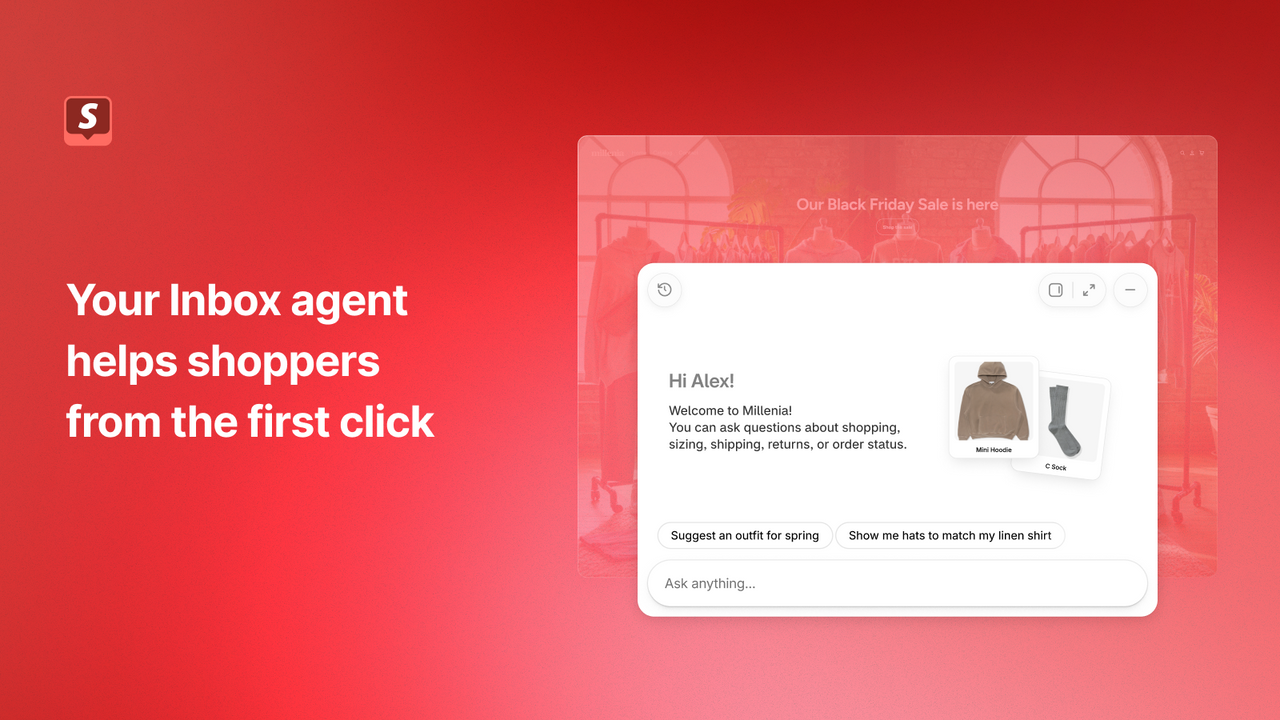
Choose when the agent answers
| Setting | Who answers |
|---|---|
| All conversations | The agent handles new conversations. |
| Only when your staff is unavailable | The agent answers outside the availability hours you set. Staff handle chats during those hours. |
| Never | The agent is off. Staff respond to customers. |
You need Inbox installed, an active online store and new customer accounts. The agent does not work with legacy customer accounts. Inbox is available on Basic, Grow, Advanced and Shopify Plus.
In Shopify admin, open Sales channels > Inbox to manage the agent. You can turn it on or off and choose when it responds. Changes to assignment take effect for new conversations.
I'd start with the hours when staff are unavailable, after checking the answers in practice scenarios. That gives you a specific job to review before deciding whether the agent should answer throughout the day.
Give it the right store information
The agent uses your catalog, policies, Knowledge Base and published content, including pages and product care guides. Its product recommendations come from your catalog. It can also cite web search for qualitative reviews or feedback about a catalog product; product facts come from your store sources.
If your return window has changed, update the returns policy. If a product needs special care, put that information in its product details or care guide. Store facts entered only in the persona might not be used consistently.
The persona is where you describe how the agent should speak. You could use the illustrative guidance below. Inbox settings control matters such as staff handoff and availability; a persona cannot override those settings or built-in behavior.
Use short, friendly answers. When a shopper is frustrated, acknowledge the problem before suggesting a next step. Avoid pressuring people to buy.
Practice before taking customer chats
Inbox can generate practice conversations from your catalog and persona. In Shopify admin, open Inbox > Training > Practice scenarios. For each scenario, choose the response you prefer or write one yourself, then finish the training run.
Your feedback can produce a suggested persona update. Compare it with the current version and save it only if you want the change. Updates are never applied automatically.
You can also rate responses from real conversations. A rating helps shape future replies; it doesn't change what the customer already read or update your product and policy information.
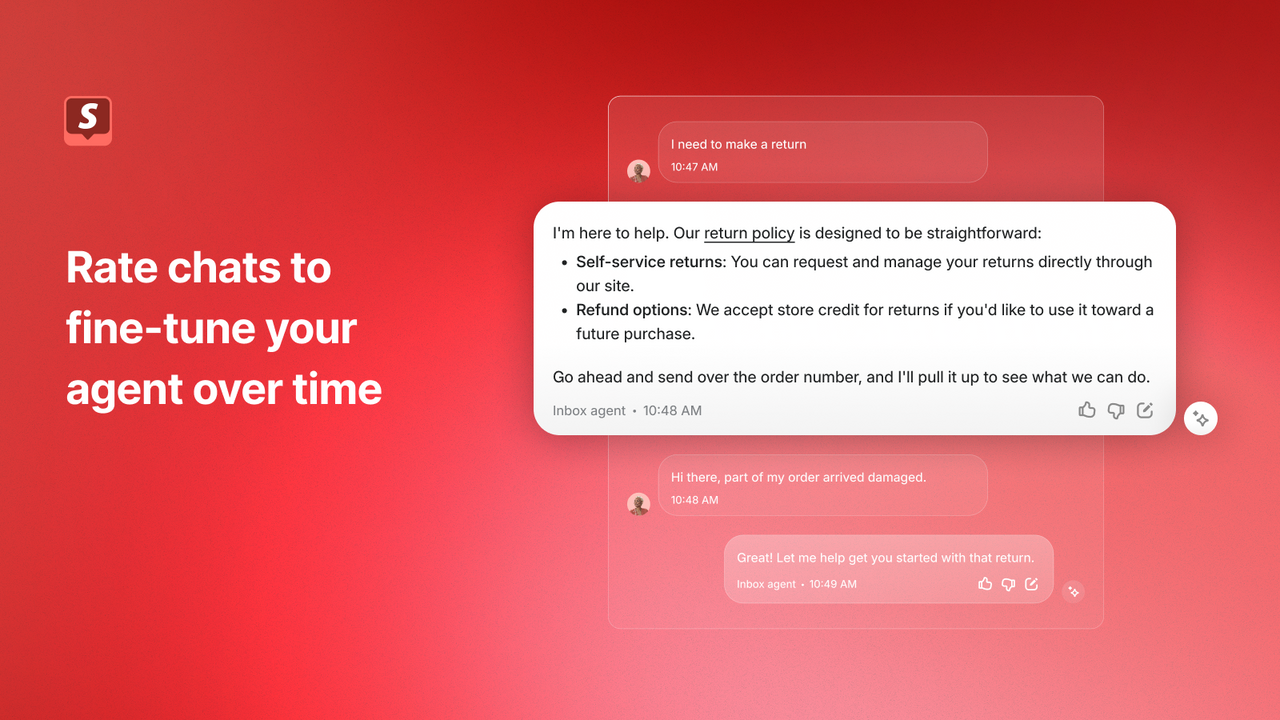
Leave a clear route to your staff
When a customer asks for a person or the conversation needs staff attention, an available handoff moves it to Inbox's Unassigned folder with the earlier AI conversation. Your team can pick it up from there.
If staff handoff isn't available, the agent gives the customer your store's sender email address. The customer has to send the email; the agent cannot email your team on their behalf.
Customers can chat with the agent without signing in, but order lookups require sign-in before it shares order information. A store setting can also require sign-in before a customer messages staff.
The chat automatically tells customers they're talking with AI. That notice can't be removed or customized. Review Shopify's guidance on chat data and your store's privacy disclosures before activating it.
Conversation limits
Shopify lists up to 100 agent responses per conversation for customers who aren't signed in, or 1,000 for signed-in customers. Each customer can start up to 50 conversations per day. Reaching a limit stops the agent's replies and uses the available staff handoff or sender-email fallback. Staff can continue the conversation.
Check the shopping journey as well as the reply
A merchant reported that Inbox checkout links skipped a delivery-date picker on their cart page. The thread opened on October 31, with further discussion on November 3. We have not reproduced the issue or verified a fix for that store.
If your orders need a delivery slot, gift message or personalization, I'd check that complete journey before turning the agent on.
Choose a product with a required detail
Use a real product that needs a delivery date or customization. Ask a question through the chat, then follow the route it offers toward buying.
Check what reaches checkout
Confirm the intended variant and quantity, and verify that the required detail is still present. Include the phone layout your customers use. Ask your app provider about any missing field before relying on the integration.
Try asking for a person
Check the staff handoff during your availability hours and the contact option outside them. Your team should know where to find the conversation.
Review the conversations that need work
The Inbox overview reports assisted sessions, assisted orders, satisfaction rate and average response time. Assisted orders count purchases by customers who interacted with the agent. That number alone cannot tell you how many extra orders the agent caused.
I'd read the chats where a customer had to repeat a question or ask for help. Fix incorrect source information, then use response ratings when the wording needs work. Check the next conversations to see whether the same problem appears again.
Sources and scope
Shopify's Help Center and official App Store listing were checked on November 3, 2026. The gallery images are Shopify's demonstration examples. We have not activated the agent, tested an integration or measured customer-service results for this guide.


